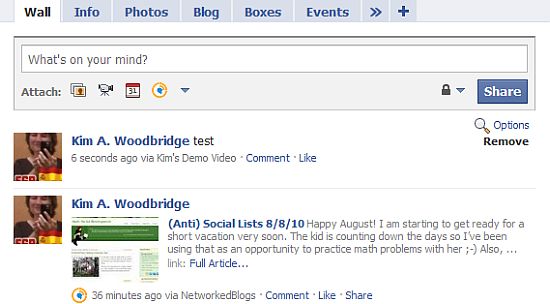
Facebook has a livestream application in which live events can occur and viewers can comment on the even in real time. Each viewer’s comment gets posted to their wall with a link back to the event, which increased the visibility of the event.
Setting up a live event on Facebook, however, is more than most of us need to do and will incur some costs setting up the event through Vimeo and other Facebook partners. We can, however, still take advantage of the Livestream application and use it with static content. The viewers can still comment on the content in real time and their wall postings will increase the visibility of your video or other materials.
Here’s how to set up the Livestream application with your static content.
- The livestream application requires an application ID in order to work properly. You can get one of these by setting up a new application in the Facebook developer’s area. The application does not need to be added to the application directory and is basically private but you do initially set it up like a brand new Facebook app, like the numerous applications you use on your Facebook profile.
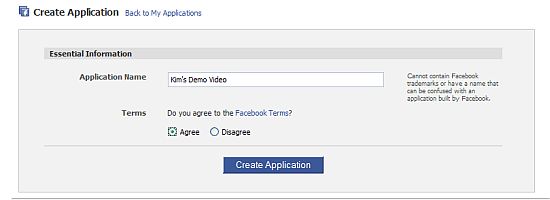
- Go to the Developer’s page and click on the button at the top right that says “Set Up New Application’.
- Give the application a name and agree to the terms of service. It has to be a unique name but I find that things like “Kim’s Demo Video” work fine. Click the Create Application button.
- Lately I have found that clicking the Create Application button causes Facebook to hang and then results in an error page. If I go back the developer’s page, the new application is in the list and has been created. Oh Facebook … what fun you are. It will be on the Application list on the right.
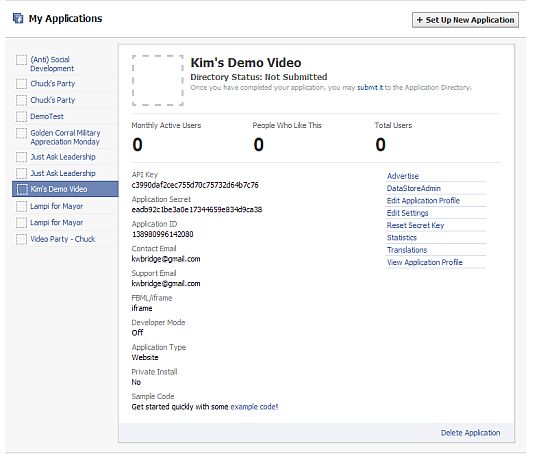
- Click on the application link and you will be taken to a page that looks like this.
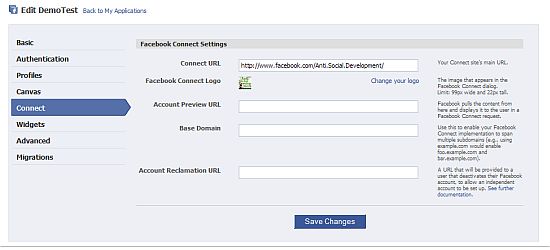
- All you need at this point is the Application ID number, which is the third field down. Please note that when you create a new application and will be tied to your own fan page. If you are making the application for someone else’s page or your own fan page, you will need to specify this. Otherwise the dynamic comments will link back to your profile page rather than the client’s fan page. To do this go to Edit Settings on the right, Connect and fill in the field called Connect URL with the URL to the fan page that the application is for. Make sure you use a trailing slash at the end of the URL or Facebook will get fussy and keep telling your that the URL is wrong. You also specify the URL for a specific tab.
- Now that you have the application ID you can set up the FBML for your dynamic comments for the video or whatever content you’ve decided to use. The fbml looks like the following.
<fb:live-stream event_app_id="YOUR_APPLICATION_ID" width="400"
height="500"/>
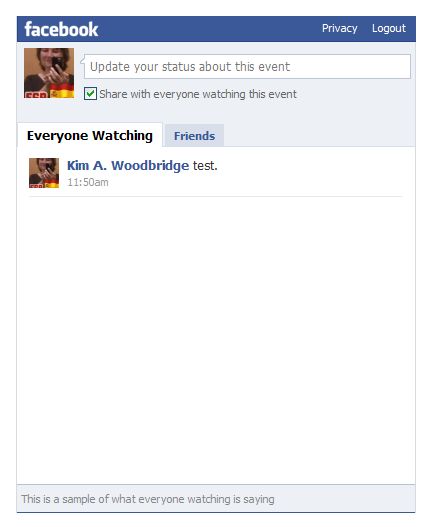
You can change the width and the height. YOUR APPLICATION ID is the application ID we obtained in the early steps when we made a new application. For example, the one for Kim’s Demo Video is 138980996142080. - The live stream dynamic comments looks like the following.
- If you go to the wall for my profile, you will see a post that says “test” that links back to theapplication on my (Anti) Social Development fan page.
- In my demo I associated the dynamic comments with an older video I made. I have discussed how to add a flash video in an earlier post. And the layout is done with an old school html table. I didn’t do any other fancy styling for the purposes of this demo. Typically a “real” one will have images and a cool background, etc.